Getting started
GitHub Freshness is available as a Chrome extension and a Tampermonkey userscript. Both versions provide the same core features and settings.
Chrome extension
Install GitHub Freshness from the Chrome Web Store.
After installation from the Chrome Web Store, the extension updates automatically through the store.
The extension source is not included in the public repository. Do not install extension files from unofficial sources. See Chrome extension for more information.
Tampermonkey userscript
- Install Tampermonkey.
- Open GitHub Freshness on Greasy Fork.
- Install or update the userscript.
- Open a GitHub repository, repository tree, or repository search page.
Open the settings panel
You can open settings from these locations:
- After installing the Chrome extension, click the GitHub Freshness browser-toolbar icon.
- On a repository page, click the GitHub Freshness icon after the Code button.
- On a GitHub search page, click the GitHub Freshness icon in the sorting controls.
- With the userscript, use the Settings command in the userscript manager menu.
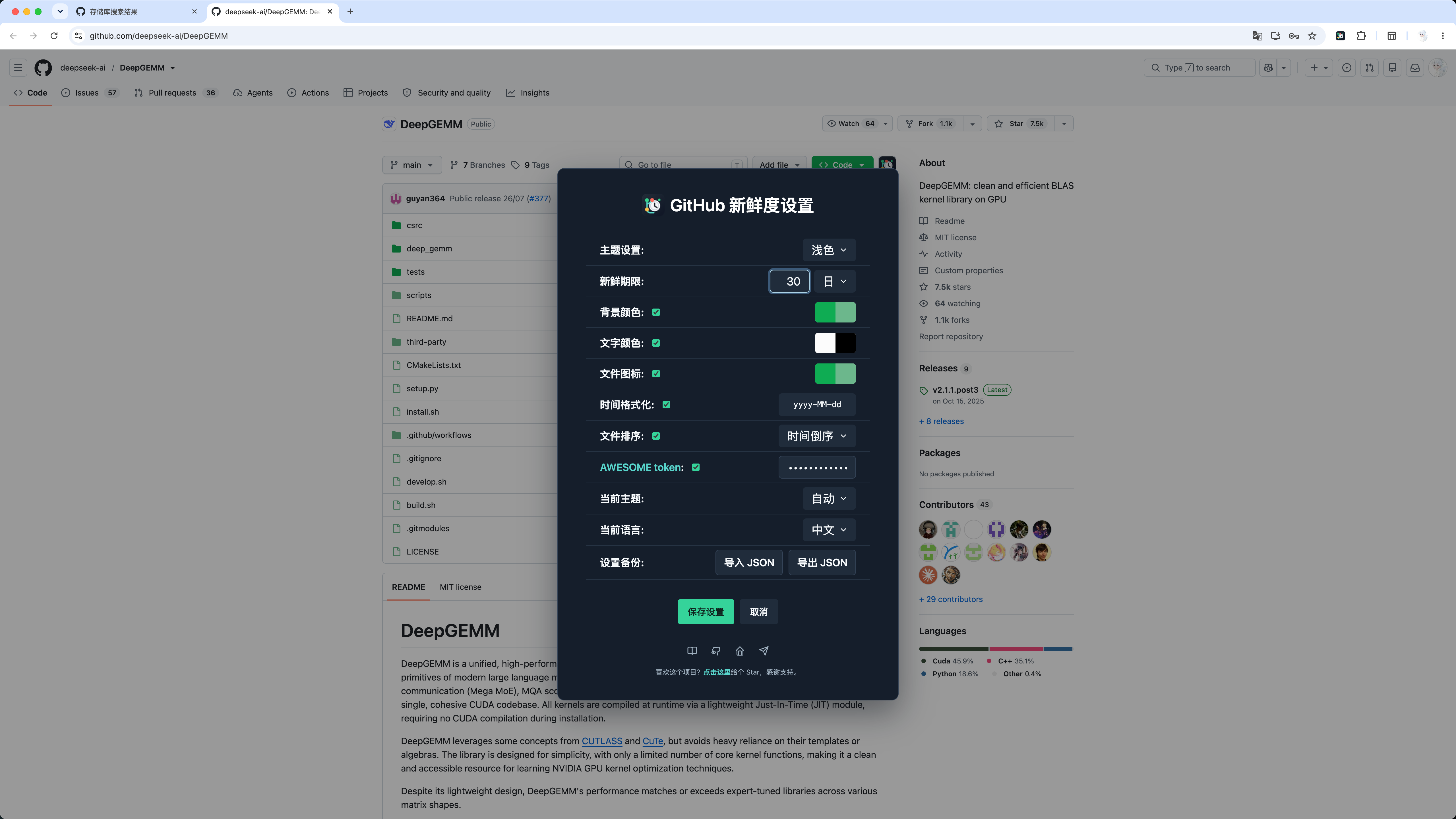
First-time setup
- Choose the light or dark configuration under Theme.
- Set a freshness period, such as
30 days. - Choose fresh and stale colors, then enable the background, text, and file icon options you want.
- Select the current theme and interface language.
- Click Save settings. The page reloads and applies the configuration.
The default interface language is Chinese. If you use GitHub in English, set Current language to Auto or English. See Feature settings for complete details.