Chrome extension
The GitHub Freshness Chrome extension does not require Tampermonkey and provides the same core features and settings as the userscript.
Official installation
Install GitHub Freshness from the Chrome Web Store.
The public GitHub Freshness repository contains only the source-available userscript and project documentation. It does not include the Chrome extension source or an extension directory for local loading. Do not install extension files from unofficial sources.
Supported pages
- GitHub repository home pages and file lists.
- Repository subdirectories and the current tree view.
- GitHub repository search results.
- Awesome-style project lists.
The extension preserves GitHub's native loading state and applies colors, dates, and sorting before the real content first appears, reducing visible flashes.
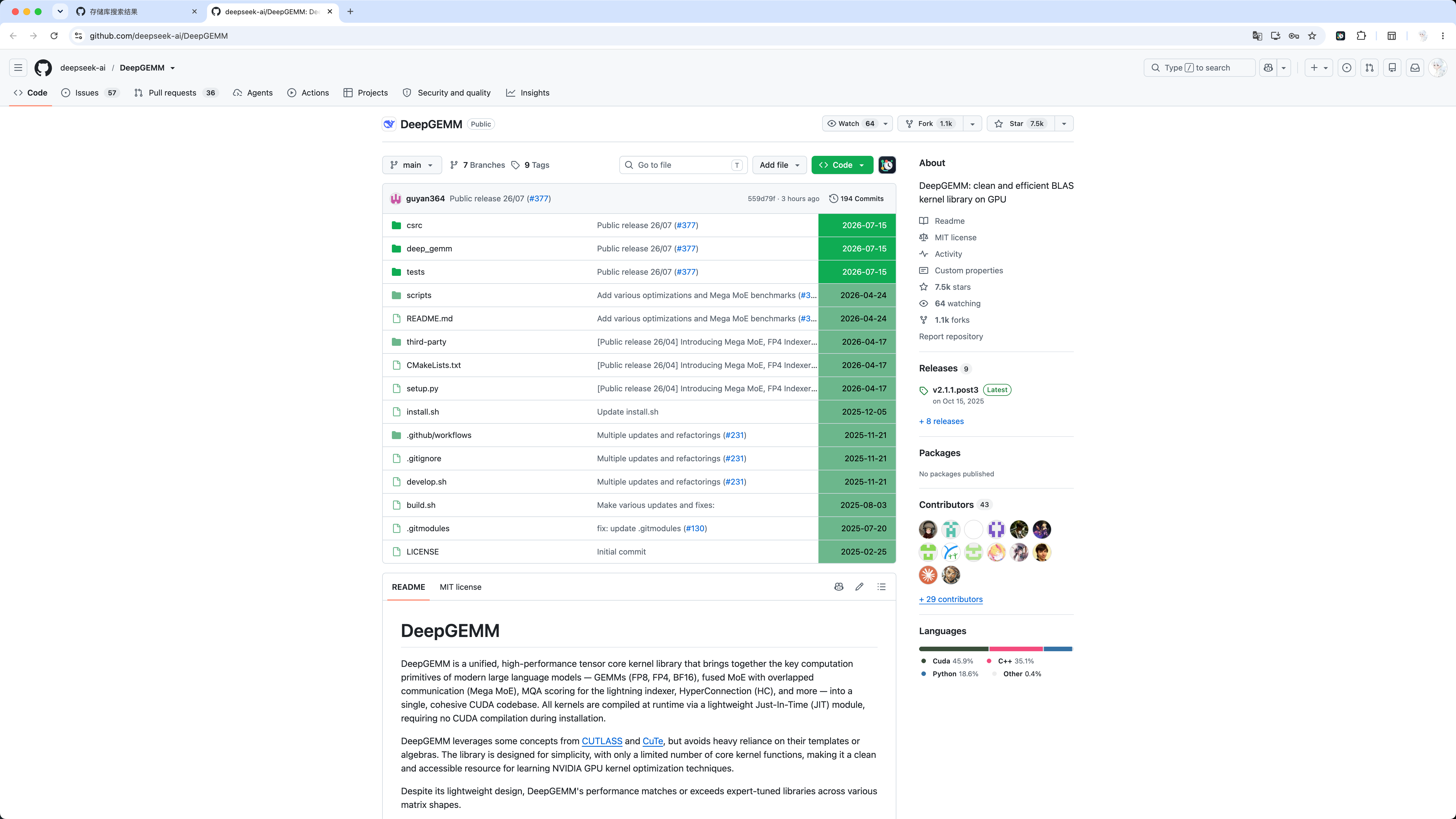
Settings entry points
- Click the GitHub Freshness icon in the Chrome toolbar.
- Click the GitHub Freshness icon after the Code button on a repository page.
- Click the GitHub Freshness icon in the sorting controls on a search page.
The settings panel manages light and dark color configurations, freshness periods, text and file icon colors, date formatting, file sorting, language, and JSON backups.
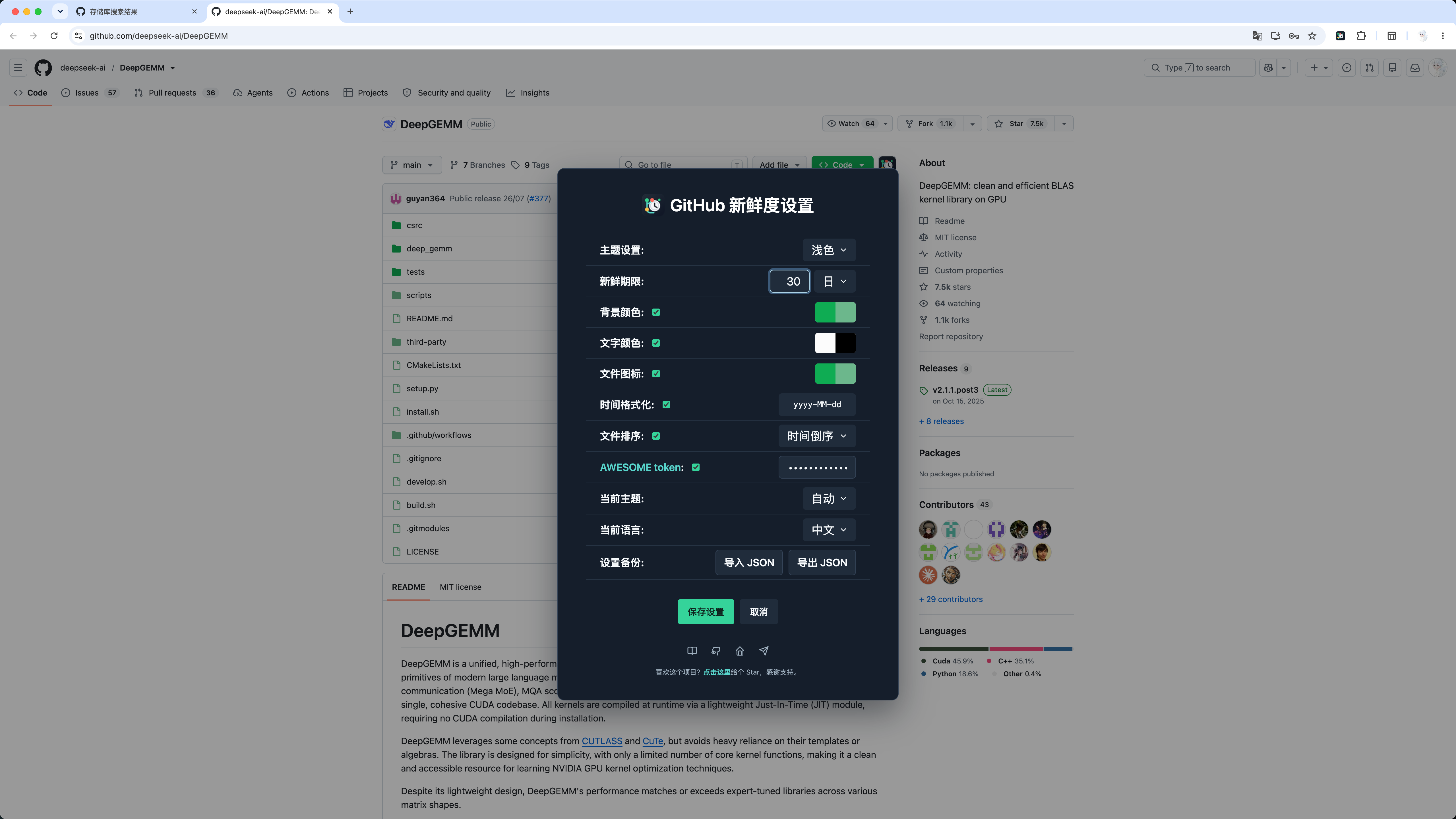
Extension updates
After installation from the Chrome Web Store, the extension updates automatically through the store. Updating does not intentionally clear saved settings.
Settings backup
The settings panel can import and export settings as JSON. Exports include theme, color, freshness period, sorting, and language settings, but never include the AWESOME token.
Imports ignore token fields in the backup and preserve the existing local AWESOME token. The page reloads after a successful import.
Permissions and privacy
The extension requests only the GitHub page access, GitHub API access, active-tab access, and settings storage needed for its core features. The AWESOME token is optional and is sent only to the GitHub API when the related feature is enabled; it is never sent to a server operated by the project author.
See the Privacy Policy for complete data-processing and synchronized-storage details.